WiFi/BT Guide
How to enable and use WiFi and Bluetooth on our modules. Connecting to a WiFi network from the Linux command line is described separately in Linux WiFi Setup.
Overview
WiFi/BT option |
Interface |
Modules / baseboard |
BSP |
|---|---|---|---|
Laird Sterling LWB5+ USB stick (450-00137) |
USB |
all modules |
NXP and Mainline BSP |
Laird ST60-2230C-P |
PCIe |
QSXM / QSXP on QSBASE3 |
NXP BSP |
Ath9k-based PCIe module (e.g. Silex SX-PCEAN2) |
PCIe |
TX8M on LVDS-MB / MIPI-MB |
NXP BSP |
Panasonic PAN9028 (NXP 88W8987, on-board) |
SDIO |
QS91 / TX91, QS93 / TX93 |
NXP BSP |
On-board WiFi/BT (BCM4373) |
SDIO |
QSMP-1530w / QSMP-1570w (“w” variants) |
Mainline BSP |
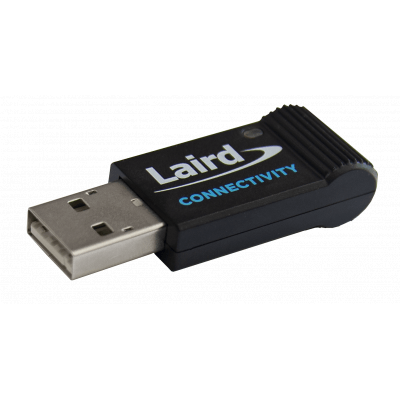
Laird Sterling LWB5+ (USB)
Hint
Make sure to order the right Laird Wifi stick. There are different versions available.
Part Number: 450-00137
(Sterling LWB5+)
This is the tested and supported WiFi USB stick for all our modules.
Danger
On STM32MP processors the support for this USB stick is in experimental state. E.g. Bluetooth is currently not working.
Build
The WiFi and Bluetooth drivers for the Sterling LWB5+ module have to be enabled in your Yocto BSP.
If you’re not familiar with Yocto first read the Yocto Guide.
Clone the meta-summit-radio layer into the BSP’s directory where the other layers are:
cd <bsp-dir>/<layers-dir>
git clone https://github.com/Ezurio/meta-summit-radio .
cd meta-summit-radio
git checkout lrd-12.103.0.x
Set up your build directory and add the layer to your build-directory’s conf/bblayers.conf:
Note
<layers-dir> is sources for the NXP BSP (karo-nxp-bsp) and layers for the Mainline BSP (karo-bsp).
For current Yocto releases (scarthgap and newer):
bitbake-layers add-layer $BSPDIR/<layers-dir>/meta-summit-radio/meta-summit-radio
For legacy Yocto releases (kirkstone and older):
bitbake-layers add-layer $BSPDIR/<layers-dir>/meta-summit-radio/meta-summit-radio-pre-3.4
Add lines to conf/local.conf:
(...)
DISTRO_FEATURES:append = " wifi lwb-wifi"
DISTRO_FEATURES:append = " bluetooth lwb-bluetooth"

BBMASK += " \
   meta-summit-radio/meta-summit-radio/recipes-packages/openssl \
   meta-summit-radio/meta-summit-radio/recipes-packages/.*/.*openssl10.* \
"

PREFERRED_PROVIDER_wpa-supplicant = "summit-supplicant-lwb-if"
PREFERRED_PROVIDER_wpa-supplicant-cli = "summit-supplicant-lwb-if-cli"
PREFERRED_PROVIDER_wpa-supplicant-passphrase = "summit-supplicant-lwb-if-passphrase"
PREFERRED_PROVIDER_wireless-regdb-static = "wireless-regdb"

IMAGE_INSTALL:append = " \
   kernel-module-lwb-if-backports \
   lwb5plus-usb-div-firmware \
   summit-supplicant-lwb-if \
"

LWB_REGDOMAIN = "DE"
Compile the desired image and flash it to your board.
Usage
Plug in the USB stick and boot your previously compiled image.
How WiFi and Bluetooth are connected is described below — Connecting WiFi.
Laird ST60-2230C-P (PCIe)
Hint
Make sure to order the right Laird WiFi module card. There are many different versions available.
Part Number: ST60-2230C-P
(Laird 60-2230C-P Series)
It is the only correct working and supported mini-PCIe module on our QSBASE3!
You have two options using the Laird WiFi module on QSX(M|P) on QSBASE3:
There are precompiled images in our Download Area with which you can use it out of the box.
To enable WiFi / BT support in Yocto see the Yocto Guide.
Setup
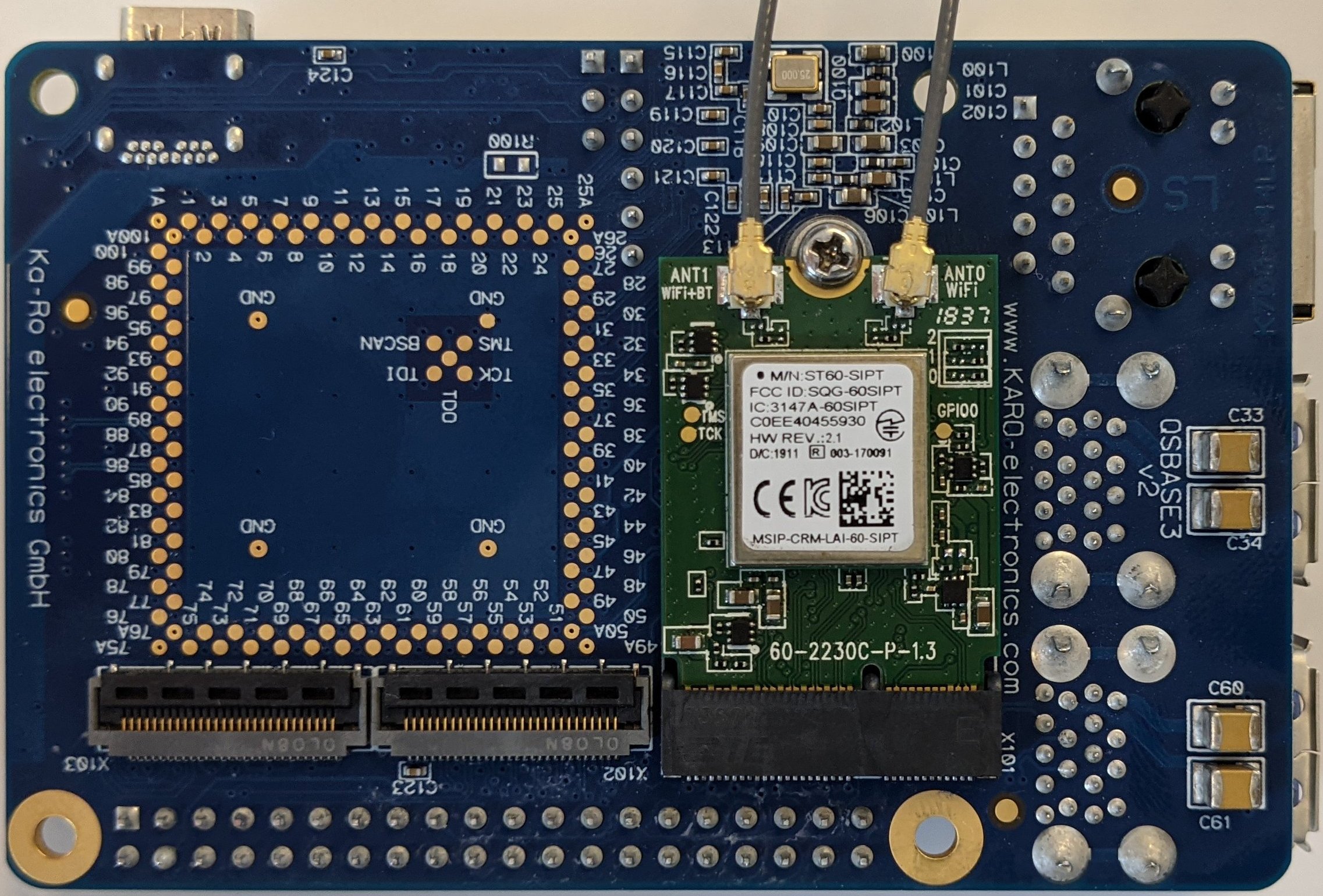
Mount the Laird PCIe WiFi module to our QSBASE3 baseboard:
Devicetree overlay
Enable the matching FDT overlay for your module:
Module on QSBASE3 |
WiFi module |
FDT overlay |
|---|---|---|
QSXP-ML81 |
|
|
QSXM-MM60 |
|
Also make sure you load the RootFS corresponding to the kernel you built, because it includes the WiFi firmware you need!
Ath9k PCIe WiFi module
Any PCIe module with an ath9k WiFi chip works — the Silex SX-PCEAN2 below is just an example that was tested by us.
Module / baseboard |
WiFi module |
FDT overlay |
|---|---|---|
TX8M-1620 on LVDS-MB |
|
|
TX8M-1610 on MIPI-MB |
|
Make sure that the appropriate FDT overlay is loaded:
EXAMPLE
setenv overlays_mipi-mb ${overlays_mipi-mb} tx8m-wifi
saveenv
reset
Also make sure you load the RootFS corresponding to the kernel you built, because it includes the WiFi firmware you need!
Panasonic PAN9028 (on-board SDIO, NXP 88W8987)
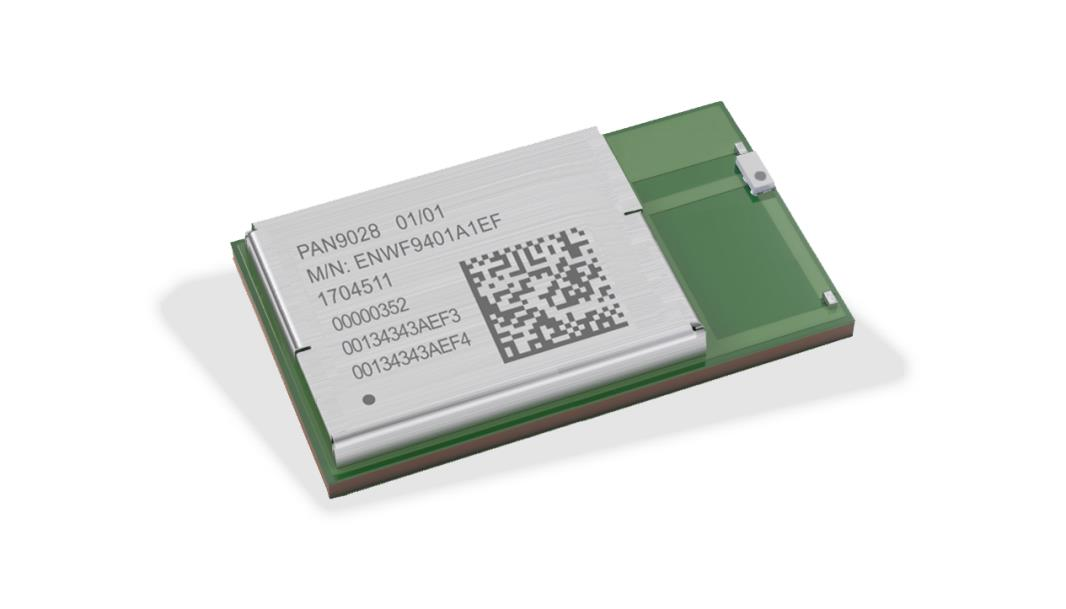
The Panasonic PAN9028 (ENWF9408AxEF) is a Wi-Fi 5 dual-band 2.4/5 GHz and Bluetooth 5.2 combo module based on the NXP 88W8987 single-chip controller. It is used on-board via SDIO on the QS91/TX91 and QS93/TX93 modules.
Get drivers
The WiFi and Bluetooth drivers for the PAN9028 have to be enabled in your Yocto build.
Add lines to your build-directory’s conf/local.conf:
(...)
DISTRO_FEATURES:append = " wifi"
MACHINE_FEATURES:append = " nxp-wifi"
(...)
After this, build the image and flash the module. The drivers and firmware will be found in /lib/firmware/nxp/.
Note
This section describes the WiFi functionality of the module. For the Bluetooth functionality, refer to the PAN9028 documentation and the Set Up Bluetooth section below.
Use module
To load the required kernel modules execute the following instructions.
Load the mlan kernel module:
modprobe mlan
Load the moal kernel module:
modprobe moal mod_para=nxp/wifi_mod_para.conf
You should see the following kernel messages:
Request firmware: nxp/sdiouart8987_combo_v0.bin
Wlan: FW download over, firmwarelen=579384 downloaded 579384
WLAN FW is active
...
Execute the following command to check if the Wi-Fi interfaces have been created:
ip addr
(...)
6: mlan0: <BROADCAST,MULTICAST> mtu 1500 qdisc noop state DOWN group default qlen 1000
 link/ether 34:32:e6:2d:ec:25 brd ff:ff:ff:ff:ff:ff
7: uap0: <BROADCAST,MULTICAST> mtu 1500 qdisc noop state DOWN group default qlen 1000
 link/ether 36:32:e6:2d:ed:25 brd ff:ff:ff:ff:ff:ff
(...)
The mlan0 (station) and uap0 (access point) interfaces are now available.
Note
Use the mlan0 interface for connecting WiFi instead of the wlan0 interface described in Linux WiFi Setup.
On-board WiFi/BT on STM32MP “w” modules
The QSMP-1530w and QSMP-1570w modules (STM32MP1 “w” variants) carry an on-board WiFi/BT chip
(BCM4373). In the Mainline BSP (karo-bsp) it is enabled by default — the distro adds
wifi bluetooth bcm4373 to the distro features for these machines, and the kernel enables the
Broadcom FullMAC driver (BRCMFMAC).
No additional setup is required: after flashing an image, the wlan0 interface is available —
see Connecting WiFi.
User-space Guide
Connecting WiFi
See Linux WiFi Setup.
Set Up Bluetooth
Note
The steps in this section are only required when using one of the PCIe WiFi/BT modules (e.g. Laird ST60 on QSBASE3). With a USB stick or an on-board module, the HCI device is initialized already.
With the devicetree, the specific UART is enabled to be used as HCI device.
Module |
tty for HCI |
|---|---|
QSXM-MM60 |
|
QSXP-ML81 |
|
Warning
If there’s a getty session running on the desired tty you will have to disable it. Otherwise the tty will not be accessible for hci.
Find all running getty sessions (example):
ps | grep getty
1652 root     /sbin/getty -L 115200 ttymxc1 linux
1653 root     /sbin/getty -L 115200 ttymxc2 linux
1660 root     grep getty
You could disable the desired tty(s) by commenting out the
corresponding lines in /etc/inittab:
(...)
# Serial consoles on the standard serial ports
s0:123:respawn:/sbin/getty -L 115200 ttymxc0 linux
# s1:123:respawn:/sbin/getty -L 115200 ttymxc1 linux
# s2:123:respawn:/sbin/getty -L 115200 ttymxc2 linux
(...)
and sending the ‘init’ process a HUP signal:
kill -HUP 1
Attach the serial port as HCI device:
hciattach /dev/ttymxc2 any 115200 flow
Setting TTY to N_HCI line discipline
Device setup complete
Connect Bluetooth
View the attached device:
hciconfig
hci0:   Type: Primary  Bus: UART
     BD Address: C0:EE:40:45:59:33  ACL MTU: 1021:7  SCO MTU: 120:6
     DOWN
     RX bytes:704 acl:0 sco:0 events:39 errors:0
     TX bytes:450 acl:0 sco:0 commands:39 errors:0
Bring the device up:
hciconfig hci0 up
Enable e.g. your phone’s BT and scan for Bluetooth devices:
hcitool scanning
Scanning ...
     55:44:33:11:22:66       elmeg D130
     FF:AA:BB:CC:DD:EE       Pixel 4